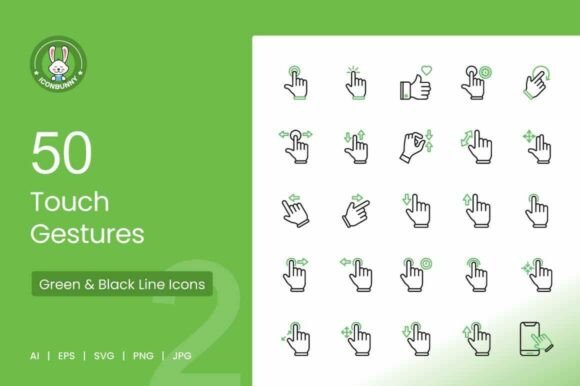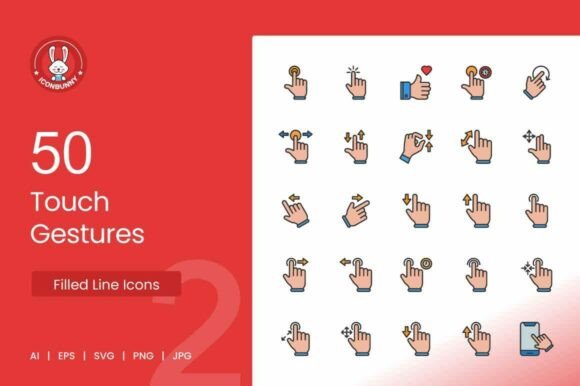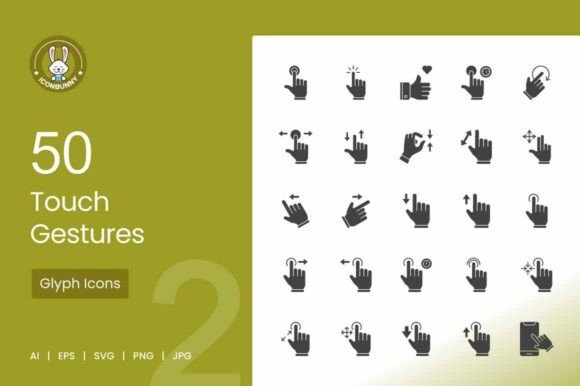
50 Touch Gestures Glyph Icons for modern interactive design
Touch gestures have become second nature. You tap your phone to open an app, swipe to dismiss a notification, pinch to zoom into a photo, and drag to rearrange icons. These movements feel intuitive because designers and developers have spent years refining how we interact with screens. But if you are building an interface, explaining those gestures to users is a different challenge entirely. That is exactly where a well crafted set like 50 Touch Gestures Glyph Icons steps in. Instead of relying on text heavy instructions or confusing diagrams, you can use clean visual cues that people understand in a split second.
What makes this set different from generic icon packs
Many icon collections include a handful of generic arrows or hand symbols and call it a day. But this set covers fifty distinct touch gestures, from the obvious tap and double tap to more nuanced actions like flick, hold, rotate, and drag. That range matters more than you might think. When you design an onboarding flow for a mobile app, for example, you often need to show a user how to perform a specific action without overwhelming them. A dedicated gesture icon for each movement makes that process smooth and visually consistent.
The icons come in a clean line style. That means they integrate easily into modern interfaces without clashing with bold colors or complex backgrounds. Because they are fully editable and scalable, you can adjust line weight, color, or size to fit your brand without hiring a designer to redraw everything from scratch. The set includes AI, EPS, SVG, PNG, and JPG formats, so whether you work in Figma, Sketch, Illustrator, or Canva, you can drop them into your project immediately.
Where gesture icons actually improve user experience
Gesture icons are not just decorative. They serve a practical purpose in several real world situations. Think about the last time you downloaded a new app. The first screen probably showed a series of tips with small icons indicating swipe left, tap here, or pinch to zoom. Those icons reduced the time it took you to understand the interface. Without them, you would have to read paragraphs of instructions or guess what to do next.
Mobile app onboarding
If you are building an app, onboarding is one of the most critical moments. Users decide within seconds whether to keep your app or delete it. Using consistent gesture icons in your onboarding screens helps people feel confident immediately. Instead of writing "swipe right to see the next feature," you show a simple swipe icon paired with a short line of text. That combination is faster to process and works across languages, which is especially useful if your app reaches international audiences.
Interactive tutorials and walkthroughs
Not every user learns the same way. Some prefer reading, others want to explore on their own, and many benefit from visual cues. In app tutorials or interactive walkthroughs, gesture icons act as visual anchors. A user sees a pinch icon and instinctively knows they need to bring two fingers together. That kind of immediate recognition reduces friction and support requests later on.
Website interfaces with touch controls
Touch gestures are no longer limited to mobile apps. Many modern websites include swipeable carousels, drag and drop elements, and pinch to zoom functionality on images. If your site relies on these interactions, adding gesture icons near the relevant controls helps desktop and tablet users discover them. A small drag icon next to a sortable list tells visitors they can rearrange items without guessing.
Presentations and pitch decks
When you present a product concept or UI mockup to stakeholders, you want them to focus on the idea, not the explanation. Including gesture icons in your slides communicates interaction patterns clearly. Instead of saying "the user would tap here and then swipe up," you show the sequence with icons. This is especially helpful for designers presenting to clients who may not be technical.
Practical use cases for different professionals
UI and UX designers can use these icons in wireframes, prototypes, and final designs. Because the icons are vector based and organized in layers, modifying them to fit specific screen sizes or color schemes takes minutes. Designers working on accessibility can also adjust contrast and size without losing quality.
App developers often need resources that work across platforms. The SVG format is particularly useful here because it scales cleanly on retina displays and different screen densities. Developers can integrate the icons directly into code without worrying about pixelation or distortion.
Digital marketers and social media managers might create infographics or carousel posts explaining how to use a product. Including gesture icons makes those visuals more professional and easier to understand. A post showing "three ways to navigate our app" becomes instantly clearer when each step has a matching icon.
Educators and trainers who teach digital literacy or app design can use these icons in learning materials. Instead of drawing hand gestures from scratch, they can pull from a consistent set that students recognize across lessons. This is especially valuable for online courses where visuals must do much of the teaching.
Small business owners creating their own website or app with tools like Canva or Figma can benefit from the ready made assets. You do not need to be a professional designer to drop a gesture icon into a banner or instruction panel. The included PNG and JPG files work out of the box for quick edits.
What to consider before choosing a gesture icon set
Not all gesture icon sets are created equal. Before you commit to one, think about the range of gestures you actually need. If your project only requires tap and swipe, a smaller set might suffice. But if you anticipate adding interactions like rotate, flick, pinch, zoom, drag, scroll, hold, and double tap later, having a comprehensive library saves you from mixing styles from different sources.
Consistency matters. Icons from different sets often vary in line thickness, corner rounding, and overall aesthetic. Mixing them can make your interface look unpolished. The 50 Touch Gestures Glyph Icons set maintains a uniform line style across all fifty symbols, which means you can use any combination without visual mismatch.
File format flexibility is another practical consideration. If you work primarily in Figma or Sketch, the SVG and AI formats give you full control over editing. If you need to drop icons into a quick presentation or social media graphic, PNG and JPG files save time. Having both vector and raster formats in one purchase eliminates the need to convert files yourself.
Resolution and size also matter. Each icon in this set comes at 1024 by 1024 pixels with 72 DPI. That is large enough for high quality display on screens and print materials. For digital use, you can scale down without worrying about quality loss, especially with the vector formats.
Real scenario: designing a gesture based app interface
Imagine you are building a photo editing app for tablets. Users need to pinch to zoom, swipe between filters, tap to select areas, drag sliders, and rotate the canvas. Your onboarding screen has limited space because you want the user to start editing quickly. You decide to show four gesture icons at the bottom of the screen with one word labels: Tap, Swipe, Pinch, Drag. That single screen replaces a multi step tutorial. Users understand the basics in seconds and start exploring immediately.
Later, you add a help section inside the app. Instead of writing long paragraphs, you create a quick reference grid with each gesture icon and a short description. Users can scan the grid in a few seconds and get back to editing. Over time, you notice fewer support emails asking "how do I zoom in?" or "how do I undo that action?" because the visual cues are always available.
Choosing the right icons for your brand voice
Every brand has a tone. Some are playful, others are minimal, and many sit somewhere in between. The clean line style of this set works well for modern, professional interfaces. But because the icons are fully editable, you can tweak them to match your brand. Thicken the lines for a bolder look, change the stroke color to your primary brand color, or add a subtle shadow effect if your design language calls for it.
If you are designing for multiple platforms, consistency across iOS, Android, and web becomes easier when you start with a single source of truth. Use the same gesture icons in your mobile app, your website, your help center, and your promotional materials. Users who see the same visual language everywhere build trust and familiarity faster.
Beyond screens: print and presentation use
Touch gesture icons are not only for digital interfaces. Print materials like user manuals, quick start guides, and posters benefit from clear visual instructions. A restaurant menu app might include a small card at each table showing how to order with a tablet. A museum guide might have a printed sheet explaining how to interact with a touchscreen exhibit. In both cases, gesture icons make the instructions universally understandable, even for visitors who speak different languages.
Presentations and pitch decks also gain clarity. When you are explaining a product concept to investors or stakeholders, showing a sequence of gesture icons can communicate user flow more effectively than bullet points. A slide that shows "tap > swipe > pinch" with matching icons is self explanatory and keeps the audience focused on the big picture.
Final thoughts on building better touch interfaces
Good interface design is about removing unnecessary friction. Every time a user has to guess how to interact with your product, you risk losing their attention. Gesture icons are a small but powerful tool to reduce that guesswork. They guide behavior without demanding attention, support multilingual audiences without translation, and make your product feel more polished overall.
The 50 Touch Gestures Glyph Icons set gives you a solid foundation for that work. With fifty distinct gestures in multiple formats, you have the range to cover most interactions without scrambling for additional assets. Whether you are designing your first app, updating an existing interface, or creating educational content, having a consistent visual language for touch gestures makes your work clearer and more professional.
Start by identifying the gestures your users actually need to perform. Then match them to the icons that fit your design style. Adjust colors and sizes as needed, and place them where users will look naturally. The result is an interface that feels intuitive because it speaks the same visual language your users already understand.